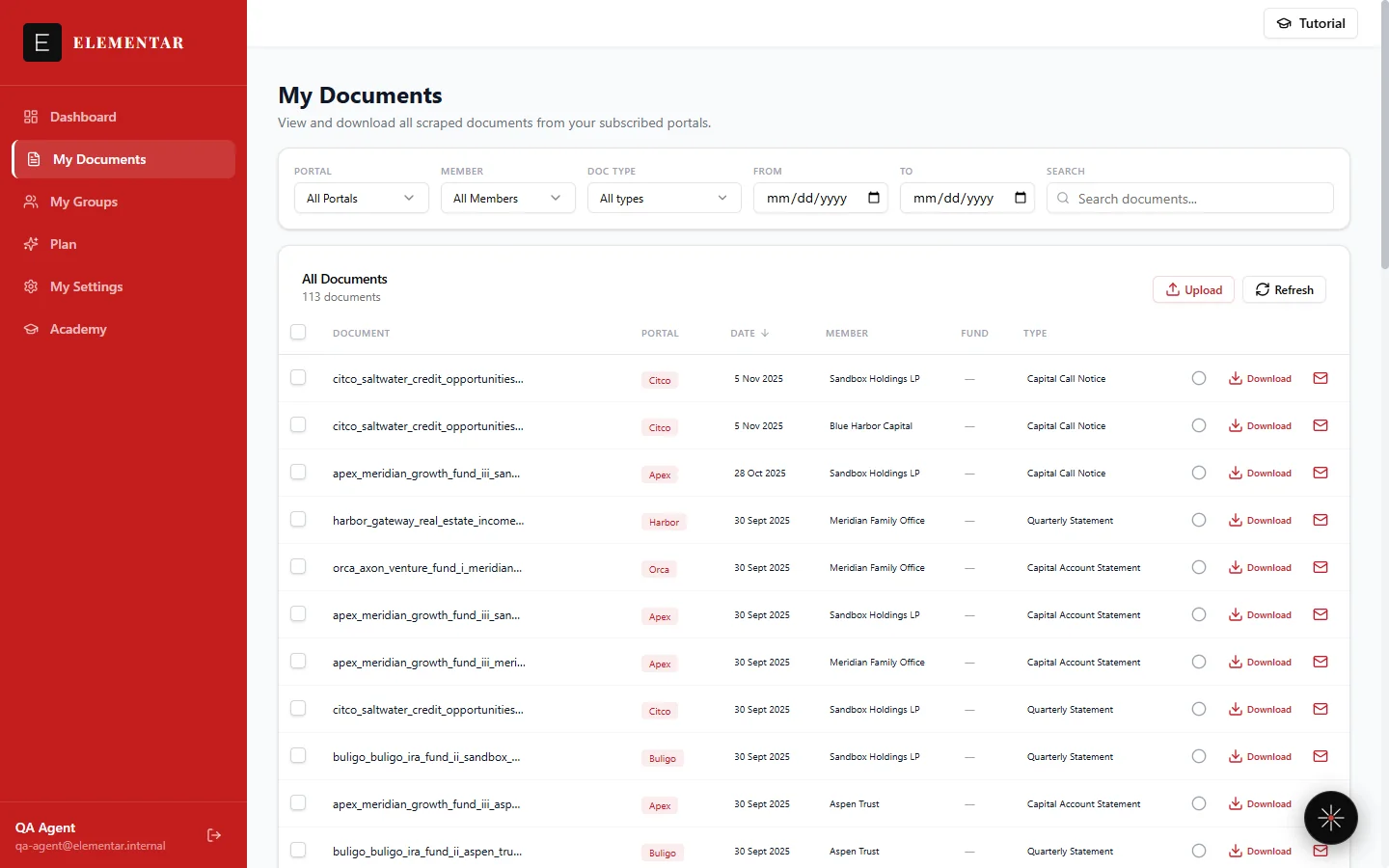
My Documents is where the results of every connected portal show up. This guide walks through what lands here automatically, how to search and filter it down, how to review, upload and send documents, and how investor groups tie back into the same filters.
What lands here automatically
You don't build this page by hand. As soon as a capital call, distribution notice, capital account statement, or NAV report is pulled from one of your connected portals, it's classified by document type and added here — searchable and filterable, with the original PDF one click away.
Connected portals are synced twice daily, so a new document from a portal shows up here automatically — not weeks later when you happen to log into that portal yourself.
Search and filter
The filter bar above the document table narrows the list down to exactly what you're looking for:
- Portal — show documents from one connected portal at a time.
- Member / investor name — show documents for a specific member. The dropdown only lists names that actually appear in your documents, and narrows further once you've picked a portal.
- Group — show documents for a named group of investors you've created (see "Organizing investors into groups" below).
- Date range — restrict results to a from/to window.
- Free-text search — match against the filename, member name, fund name, and portal.
- Document type — pick one or more types. Types are grouped into families (Capital Calls, Distributions, NAV Reports, Statements, Tax Documents, Quarterly Reports, Admin Documents), so checking a family — e.g. "Capital Calls" — picks up every spelling your portals use for that family in one go, rather than making you find and tick each one individually.
Like the member filter, the portal and document-type options are drawn only from documents your account actually has — you'll never see a type or portal listed that hasn't shown up in your own account.
Opening and reviewing a document
Click any row to open the document detail view, where you can read the original PDF alongside its extracted details.
Once you've looked at a document, mark it done using the Done toggle on its row (or select several rows and use the bulk Mark as done / Mark as not done action) so you can keep track of what's still outstanding. You can also ask Lumos how many of your documents are still unreviewed and it will give you the count.
Uploading your own documents
Not everything arrives through a portal connection. If a GP or administrator emails you a document directly, use the Upload button above the table to add it manually so it lives alongside everything else.
Drop one or more files onto the upload area, or select them from your computer. Each file must be a PDF no larger than 10MB; files are uploaded one at a time, so if one is rejected — wrong format, or over the size limit — the rest of your selection still goes through.
Adding documents by email
You can skip the Upload button entirely: email a document to your Elementar intake address (shared with you during onboarding) and it uploads from there on its own — landing in My Documents alongside everything your portals deliver. Duplicates are detected automatically, so re-sending the same file is harmless.
Three things to know for it to work:
- Send from a registered address. Documents are routed to your account by the sender, so the email must come from an address registered on your account. Your addresses are registered during onboarding — email eilon@elementarai.com to add another.
- Attach the PDF itself. Attach the PDF file directly to your message. Forwarding an email as an attachment, or images embedded in the message body, won't be picked up.
- PDFs only. The same format rule as the Upload button applies.
Sending a document by email
Select one or more documents using the checkboxes in the table, then choose Send by email from the action bar that appears above the list. A single document or several at once are sent as attachments to the message you write.
Add recipients as a comma-separated list of addresses, a subject, and an optional message body, then send. If your current filters match more documents than fit on one page, a "Select all matching" option lets you select every matching document across every page — not just the ones currently visible — before you send.
Organizing investors into groups
If your book includes several investor or member names that belong together — for example, related entities held by one family member — create a named group under My Groups. A group is simply a name plus a set of member names you select; it doesn't carry any financial figures of its own.
Once created, a group becomes another filter option here on the Documents page, and a targeting option when you set up a Digest Rule (an automated email notification for new documents matching a set of criteria).
New documents since your last visit
When you open the Documents page, a short notice tells you how many new documents have arrived since you were last here — for example, "3 new documents since your last visit." It's a quick way to catch up on what's changed without re-scanning the whole list.