Elementar can email you — or anyone on your team — whenever new documents arrive, on whatever schedule fits how you work. Digest rules live in Settings → Digest Rules; the address they send from and your contacts live in Settings → Email. (A separate, single toggle in Settings → Notifications controls a different email — an alert if a portal connection's 2FA codes stop arriving. That's not a digest rule, and it isn't covered on this page.)
Digests
Email Digests
Set up email digests in Elementar: who gets notified, on what schedule, filtered by portal, document type, or investor group.
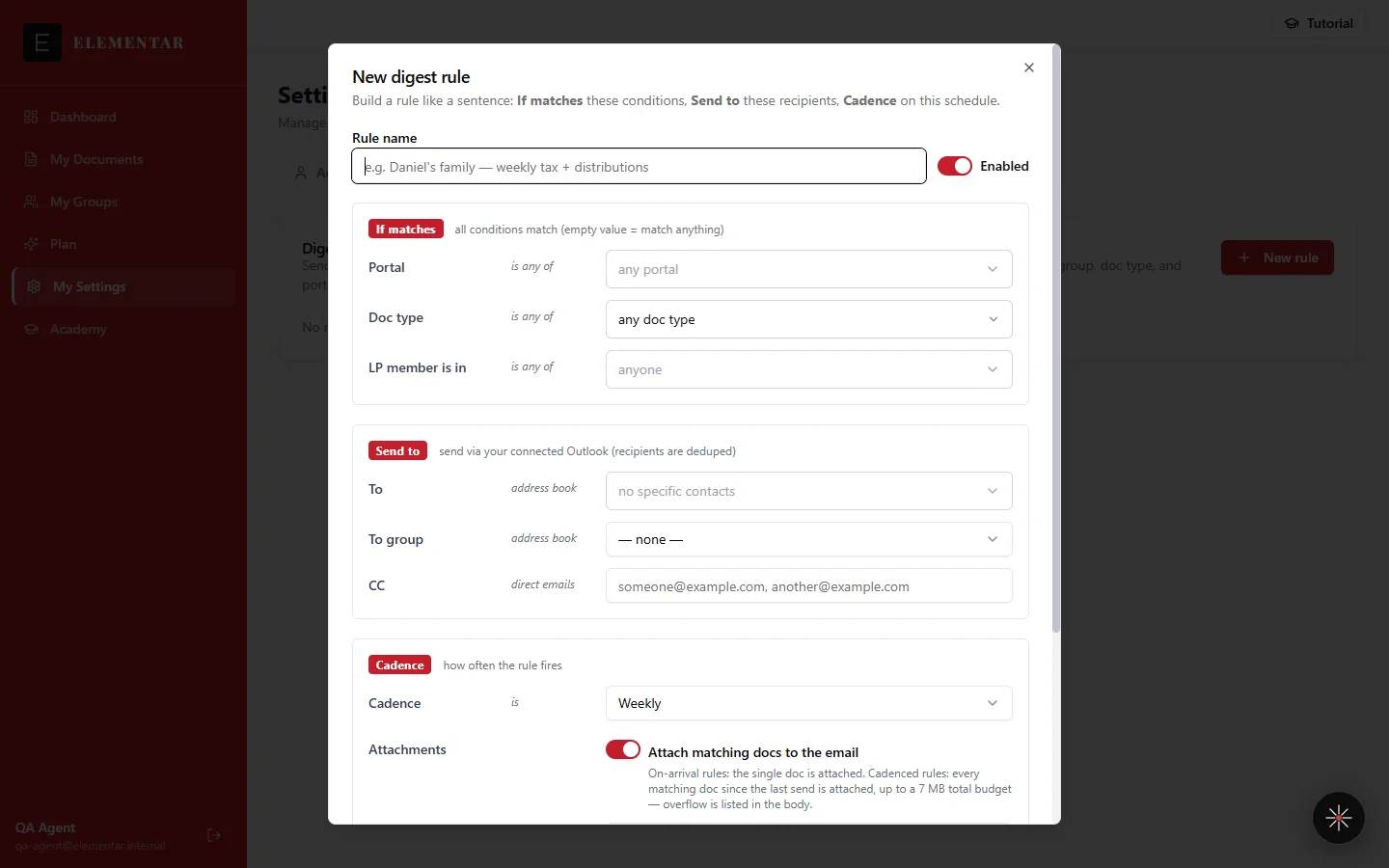
Build a rule like a sentence
Every digest rule is built the same way, as one sentence: If matches these conditions, Send to these recipients, Cadence on this schedule. Set the three parts once and the rule runs on its own from then on.
- If matches — the conditions a document has to meet: which portal it came from, what type of document it is, and which LP group the investor belongs to.
- Send to — who receives the email: specific address-book contacts, a named group, and extra CC addresses typed in directly.
- Cadence — how often the rule checks and sends: On arrival, Daily, Weekly, Every 2 weeks, or Monthly.
Filters: portal, document type, investor group
The Portal and Doc type filters only ever list what your account has actually received — the same portals and document types you'd see filtering the My Documents page. If a portal or document type hasn't shown up yet, it won't appear in the picker; it starts appearing as soon as the first matching document arrives. Leave a filter empty and it matches anything for that condition. Leave all three empty and the rule matches every document your account receives.
The third filter, LP member is in, matches by investor group — the groups you build on the My Groups page (the same groups used to filter documents, not a financial rollup). If you haven't created any groups yet, the field has nothing to pick from and the rule falls back to matching every investor.
Saving a rule with no filters at all triggers a confirmation, because it will fire on every document you receive: with attachments turned on, that means every matching document gets attached, up to the size budget described below. Confirming is fine if that's genuinely what you want — a rule with no filters is a valid way to say "send me everything."
Attachments and templates
Each rule has its own switch for whether matching documents are attached to the email, or whether the email is a notification only. On-arrival rules attach the single document that matched. Cadenced rules (daily, weekly, and so on) attach every document that has matched since the rule's last send, up to a 7 MB total budget per email — anything over that budget is listed by name in the body instead of attached.
You can customize the subject and body of the email with placeholders, which are filled in with the details of the matching document(s) when the email actually sends:
| Placeholder | Fills in with |
|---|---|
| {member_name} | The investor / LP name on the matching document |
| {fund_name} | The fund name on the matching document |
| {doc_type} | The document type (e.g. capital call notice, NAV report) |
| {portal} | The portal the document came from |
| {report_date} | The document's reporting date |
| {date_range} | The period covered, for a cadenced rule |
| {N} | The number of documents matched in this send |
Test before you trust it
Every rule has a Test send (last 7 days) button in its row. Click it and the rule fires immediately against the last 7 days of documents — independent of its normal cadence — so you can confirm it's wired correctly without waiting for the next scheduled send, or for a new document to arrive.
You'll see one of three outcomes: the test send is queued and reports back how many documents matched, it's skipped (most often because the rule has no recipients configured), or it fails outright with an error. Any of the three tells you immediately whether the rule as configured will actually reach anyone — the fastest way to catch a misconfigured filter or a missing recipient before relying on the schedule.
Looking forward, with one exception
On-arrival rules only ever match documents from the moment you create them onward — they do not go back and notify you about documents that arrived before the rule existed. Cadenced rules (Daily, Weekly, Every 2 weeks, Monthly) work differently on their very first scheduled send: since the rule hasn't sent before, that first send has no earlier boundary to filter from, so it can include documents that already existed when you created the rule. After that first send, a cadenced rule also only matches documents that arrive going forward. If you want to see or send older documents directly, browse and filter for them on the My Documents page instead.
Who it's sent from
Digests are sent from one of two places, set in Settings → Email: the default address, or your own connected Outlook mailbox. The default sends from donotreply@elementarai.com and needs no setup. Connecting your own Outlook lets you send from your own email address instead, so recipients see mail from your organization rather than a no-reply address; switching between the two doesn't drop the connection, you can switch back anytime.
Recipients for a rule come from the same Email tab: the contacts in your address book, any named group you've organized them into, and any extra addresses you type directly into a rule's CC field.
If something doesn't arrive
If you've set up a rule and haven't gotten an email you expected, start with a test send on that rule — it will tell you immediately whether the problem is the filter, the recipients, or the send itself. For a longer walkthrough, see “I created a digest rule but never got an email” in Troubleshooting.
Quick answers
How is a digest rule structured?
As one sentence: If matches these conditions (portal, document type, or LP group), Send to these recipients (contacts, a group, or CC addresses), Cadence on this schedule (On arrival, Daily, Weekly, Every 2 weeks, or Monthly).
What happens if I don't set any filters on a rule?
The rule matches every document your account receives. Elementar asks you to confirm before saving a rule with no filters, since with attachments on that means every matching document gets attached, up to the 7 MB budget per email.
How many documents can be attached to one digest email?
Up to 7 MB total per email. On-arrival rules attach the single matching document; cadenced rules attach everything that matched since the last send, up to that budget, and anything over it is listed in the body instead of attached.
Can I check that a rule works before I rely on it?
Yes. Every rule has a Test send (last 7 days) button that fires it immediately against the last 7 days of documents, independent of its normal schedule, and reports back whether it matched, was skipped, or failed.
Will a new digest rule notify me about documents I already have?
It depends on the cadence. On-arrival rules never do — they only match documents from the moment they're created onward. A newly created cadenced rule (Daily, Weekly, Every 2 weeks, or Monthly) can include documents that already existed when you created it, but only on its first scheduled send, since that first send has no earlier boundary to filter from. After that first send, a cadenced rule also only matches newly arrived documents. Browse My Documents for anything older you don't want to wait on.
Can digests be sent from my own email address?
Yes. Connect your own Outlook mailbox in Settings → Email and switch the sending mode to it. The default, no-setup option sends from donotreply@elementarai.com.
Next step
Set up your first digest rule
Digest rules live in Settings → Digest Rules, inside your Elementar workspace. Build one, test it against the last 7 days, and let it run on schedule from there.
Log in to ElementarAlso: Getting started · Troubleshooting · Academy home