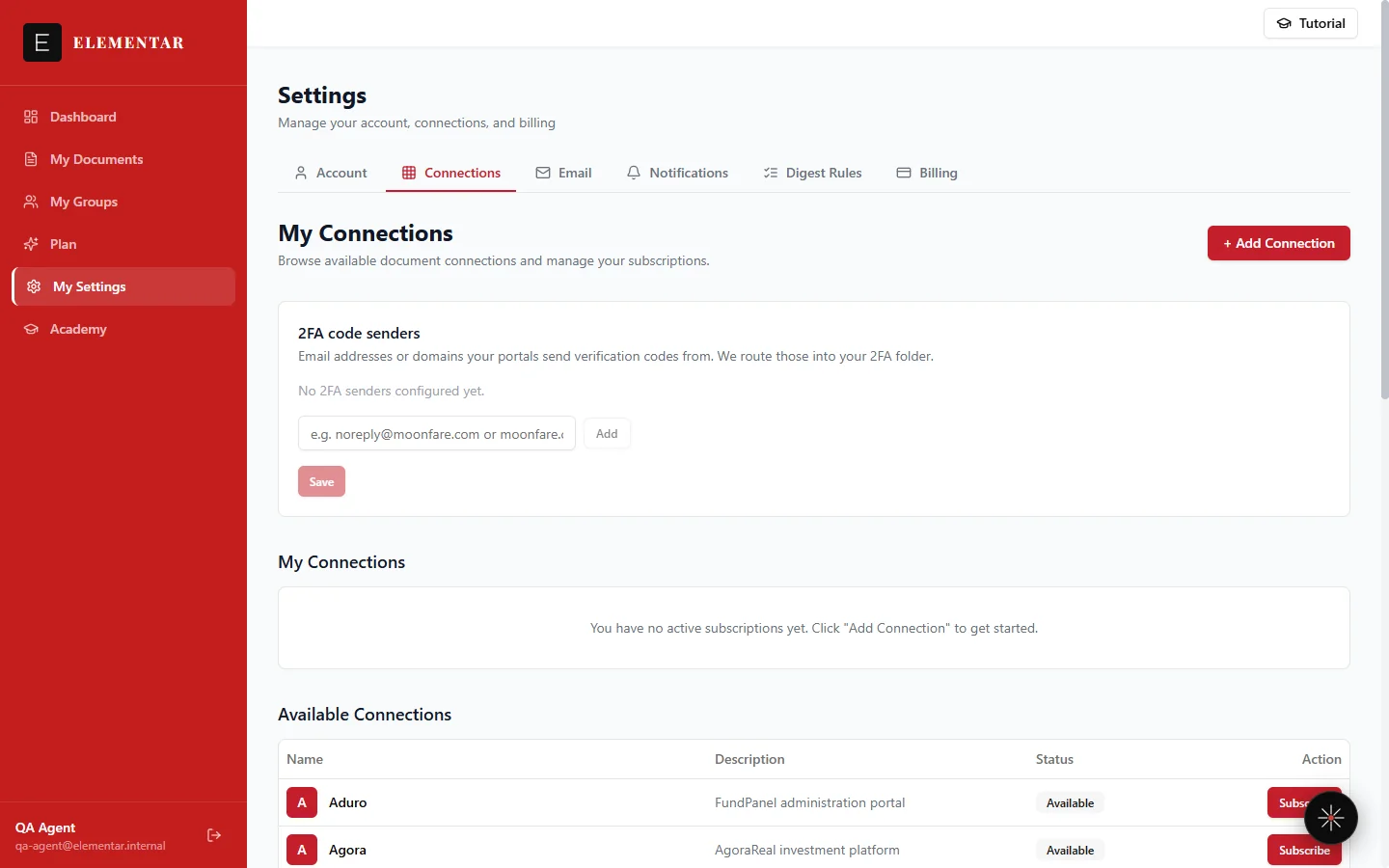
A connection is what links Elementar to one fund-administration portal you already use. Once it's set up, Elementar logs in automatically, reads what's new, and leaves everything else untouched. This page covers what a connection does, how to add one, what the status badges mean, and how to fix the two things that most commonly interrupt a connection: an outdated password and a missed 2FA code.
What a connection is
You give Elementar the login you already use for a fund-administration portal. Twice a day, Elementar logs in automatically and read-only, and checks for new documents to pull into your account — nothing more.
Your portal credentials are encrypted and stored in Azure Key Vault. They're decrypted only by automated processes to log in on your behalf; any human access is restricted and audited. See Read-only, always below for the full access model.
16 portals today, any portal in up to 3 days
Elementar connects to 16 fund-administration portals today:
- Citco
- Apex
- Moonfare
- Buligo
- Harbor Group
- Aduro
- Intralinks
- Sun Holdings
- Agora
- Orca
- HGI
- Clockwork Admin
- iCapital
- Alter Domus (CorPro)
- BDO Admin
- IBI Investment House Ltd
If your office uses a portal that isn't on this list, you don't need to wait for a future release — we add any portal your office uses in up to 3 days. See Add a connection below for how to request one.
Add a connection
Go to My Settings → Connections and click the + Add Connection button. You'll be offered two paths.
Use Catalog Portal
Subscribe to an existing connection from our catalog. Pick the portal from the list (or it's preselected if you clicked from an existing row), then enter your username (email) and password for that portal. Elementar starts logging in and collecting your documents automatically from the next sync onward.
Request Special Portal
Submit a custom portal URL for us to build a connection. The request form asks for the portal URL, your username (email) for that portal, your password for that portal, and a short description of what you need from it — we'll build a connection for it and add it to your subscriptions, in up to 3 days.
Reading connection health
Every connection in My Settings → Connections shows a status badge. Here's what each one means and what, if anything, you need to do.
| Badge | What it means | What to do |
|---|---|---|
| Working | The connection is healthy. The badge shows the time of the last successful sync. | Nothing — this is the normal state. |
| No runs yet | The connection was just added. Its first sync will run within 24 hours. | Nothing — wait for the first sync. |
| Wrong creds | The portal login is failing. The connection is skipped until credentials are updated. | Click the badge to open Edit Credentials and re-enter the current password. See Fixing a failed login. |
| 2FA didn't arrive | The verification code for that portal didn't arrive at the configured destination email, or arrived but was rejected. | Check that your 2FA senders are registered — see Routing 2FA codes automatically. |
| Sync delayed | A transient issue on this run — for example a temporary network or portal-side hiccup. | Nothing. We're on it — the next sync will retry automatically. |
| Portal locked | An administrator-side lock on the portal account itself. This connection won't run again until the lock is resolved, so it doesn't keep delaying the rest of your reconciliation. | Contact us at eilon@elementarai.com to resolve it. |
Pausing a connection manually
Next to a connection's health badge is a separate Pause toggle. Turning it on skips that connection on its next scheduled sync and keeps the documents it's already collected; turning it off lets the connection resume on its next scheduled sync. The Pause toggle is independent of the health badge next to it — pausing a connection doesn't change what its badge shows, so if a connection has stopped syncing, check whether it's been paused as well as reading its badge.
Fixing a failed login
When a connection shows Wrong creds, click the badge to open Edit Credentials. The dialog shows three fields for that portal:
- Username — the login you use for that portal.
- Password — leave it blank to keep the current password on file, or enter a new one to replace it.
- 2FA destination email — where that portal sends its verification codes.
You only need to fill in the field that changed — for example, if just the password changed, you can update that alone without re-entering your username. Save, and the connection resumes on its next scheduled sync.
Routing 2FA codes automatically
At the top of My Settings → Connections is a panel for 2FA code senders: tell us which email addresses or domains your portals send verification codes from, and Elementar routes those into your 2FA handling automatically.
Add a sender by typing an address or domain (for example noreply@moonfare.com or moonfare.com) and pressing Enter or Add; remove one with its chip's close button; then click Save. If Elementar has suggestions based on portals you've already connected, they appear as a Suggestions list you can add with one click.
This tenant-wide senders list is separate from the per-connection 2FA destination email field in Edit Credentials, which tells Elementar where a specific portal sends its codes.
Automatic pause on repeated 2FA failure
If Elementar can't receive a 2FA verification code for a connection for 24 hours, it automatically pauses that connection and emails you — this protects your portal account from being locked out by repeated failed login attempts.
This safety default is on by default. You can turn it off in My Settings → Notifications. If you turn it off, that connection keeps retrying periodically even while its 2FA codes aren't arriving, which risks the portal account being locked out — turning it off asks you to confirm you understand that risk first.
Read-only, always
Every connection is read-only — no funds ever move. Two-factor logins are handled automatically, so you never have to hand over a live 2FA code yourself once a connection is set up.